Category Archives: HTML5

Solving the Magic Hexagon Puzzle

First, start with the hint to solve the Magic Hexagon Puzzle. Without the hint, there are ten quadrillion ways to place 19 tiles in the array. The hint gives you the locations of six tiles. Now, with the hint, there are still over six billion ways to place 13 tiles, a large reduction but still too many for our slow hands and short lives!

So next, you are going to have to use some logic in solving the puzzle. My strategy was to solve the 3-tile rows on each of the six sides of the hexagon. Next, I placed tiles in the two 4-tile horizontal rows, and lastly in the middle 5-tile horizontal row. On my first try, I got all rows solved, except for three contiguous diagonal rows. The middle one of these rows had a sum that was too high by 4, with each of the two neighboring rows too low by 2. I suspect a couple swaps between these three rows would have obtained a complete solution, were I to have continued. Starting again on another day, I was able to solve the puzzle. So it can be done.

There are references to this puzzle’s history (and solution) on the web. From Wikipedia’s article Magic Hexagon, “The order-3 magic hexagon with numbers 1 through 19 and magic sum 38 has been published many times as a ‘new’ discovery. An early reference, and possibly the first discoverer, is Ernst von Haselberg (1887).” Wikipedia says that the order-3 magic hexagon has a unique tile-arrangement solution, and is the only ‘normal’ hexagon, which is one with sequential integer tile numbers starting at one. The article then describes several ‘abnormal’ magic hexagons with different lists of integer tile numbers.

In a side project, I sought a direct linear algebra solution to tile placement using the hint and Matlab. This turned out not to be possible because the coefficient matrix was very sparse and singular, and a solution couldn’t be obtained or approximated by any of Matlab’s methods. For fun, I also used Matlab to do a brute force random search for a solution using the hint. Note that a direct search using permutations of tile numbers wasn’t possible because the over six billion permutations were too many to be generated. I obtained the unique solution in several runs after as many as five billion tries and as few as several hundred million.

After finishing my 19-tile magic hexagon web app, I thought that a smaller hexagon array with two tiles on a side and seven total tiles would be easier to solve. Nope! After using Claude Code to write a script for computation in Matlab, then reading more on the web, I discovered that there is no list of real numbers, not sequential, not starting at one, nor otherwise, for which one can obtain a common row sum for this smaller hexagon!

Please send us a message letting us know what you think at support@reactorlab.net
Developing the Magic Hexagon Puzzle with Claude Code

We have a couple drawers in our living room coffee table with many wind-up toys and some puzzles. One puzzle has a wooden tray in the shape of a hexagonal array and 19 small hexagonal right prisms or tiles, each with an integer from 1 to 19 printed on them. The goal is to place the tiles in the tray such that each of 5 horizontal and 10 diagonal rows sum to 38.

Given a choice, and space, I prefer hands-on material objects over web apps. But this wooden puzzle or game has a couple drawbacks: there are too many pieces to keep track of, and one has to mentally recompute the rows sums over and over. It looked like a good condidate for a web app.

Around this time, my subscription to the Claude AI desktop app came to include the Code tab as well as the Chat tab. In the Chat tab, you can write prompts to ask general questions and to generate code from snippets to complete web pages. The code for a web page resides in and can be viewed and displayed by Chat in a local browser pane. In contrast, the Code tab can also write and edit a project consisting of multiple files on your disk. That allows you to develop complex projects. And having the code on your computer lets you make changes in the code file directly yourself, after which Code can reload it and continue working on it.

I decided to use Claude Code to develop a web app version of the puzzle, the Magic Hexagon Puzzle. My work spanned three days of part-time work to get a web app that works and looks well. Most work with Code involves writing prompts, which are written descriptions of what I would like Code to do for me.

This is the start of the first prompt I wrote: “I want you to develop a web app that is a “magic square” game (although no squares are involved!) – the game involves moveable hexagonal pieces, each numbered with one unique number in the range 1 to 19 – the game also involves a hexagonal target array of hexagonal target locations, where the target locations are the same size as the moveable pieces and the hexagonal array has 19 locations (each of the 6 sides of the array is 3 locations long)…

In the first day, Code quickly got the major components working. I was very impressed. It did have a problem in that some of its logical rows to sum had “kinks.” I first tried to write prompts to solve this problem but found that it was more effective to go into the Javascript file myself and edit the arrays that defined the rows. I was helped by the comments which Code had written in the file that showed graphically the tile layout in the hex array.

Another help was that Code created, without being asked, a new screen coordinate system with integer increments of the width of a tile. This made it easy for me to specify locations. Code then had a function to convert from these coordinates to screen pixel coordinates, which are useful for small adjustments but not intuitive for layout design.

Adding the row sum indicators was pretty straightforward, first asking for a function to make a single circle with a field for a row sum and an arrow whose angle could be specified. Then I asked for an indicator to be placed just outside the end of each row. Most time was spent getting the indicators placed and arrows pointing correctly.

Most of the last two days of development involved adjusting sizes and positions of elements. This took more of my time than having Code get the major elements on screen and the functionality working. For questions on issues related to the project, I switched to Chat mode.

In conclusion, I was very impressed with Claude Code! Having the ability to edit code by hand in Code is an advantage over developing a project in Chat where you can’t edit the code in a project directly during development but must keep writing prompts.

Please send us a message letting us know what you think at support@reactorlab.net
Reactor Networks & React

I realized that the Reactor Networks web lab would be a candidate for converting to a React app. In this lab, web elements such as CSTRs and PFRs are added and removed from the web page. React’s self-contained components, which can be added and removed from the DOM, are designed for this purpose. At this point, I have decided to stick with plain Javascript and my current approach, which is similar to what React does.

In the current approach, functions that create a unit such as a PFR are contained in separate JS files. When called to add a unit to the flowsheet, a function returns a template string (template literal) with the HTML that labels and displays the unit. The standard JS function insertAdjacentHTML is used to add this component to the DOM. No external data is involved, so this is safe. The standard JS function remove is used to delete the component.

Please send us a message letting us know what you think at support@reactorlab.net
TypeScript and React in the development of web pages and apps

Reactor Lab’s Web Labs are written with plain HTML/CSS/Javascript with only the jQuery library and a plotting library added. Many web sites and apps are built using TypeScript and React. I used Claude AI to help me write an explanation of these tools.

TypeScript is a way to declare values in Javascript as to type, that is, what kind of value it is (function, number, boolean, string, array, etc.) and what operations can be performed on it. Declaring value types is a way to help avoid runtime errors.

JavaScript written with TypeScript is saved in .TS files. A TypeScript compiler continuously checks for type errors while compiling .TS files into standard JavaScript files that can be executed by a web browser alongside the project’s HTML and CSS files.

CSS files are written and handled normally when developing with TypeScript or React.

React enables building complex user interfaces (UI) by composing simple, self-contained components. These components encapsulate UI structure, state, and behavior, and can be reused within a project or shared across multiple projects.

React code in development is written using JSX, a JavaScript syntax extension that looks like HTML/XML embedded in JavaScript. React code is saved in .JSX files.

TypeScript and React can be used independently or can be used together. When TypeScript is used along with React, the code is saved in .TSX files.

The .TSX and .JSX files are run through a transpiler that processes the files and outputs standard Javascript files that can be run in a web browser. A short index.html file loads the Javascript files. In practice, modern build tools like esbuild or Vite handle both TypeScript compilation and JSX transpilation in a single step.

The Javascript files output by the transpiler contain calls to functions in the React runtime Javascript library, which is downloaded by the browser along with the other files in the project. The React runtime library handles the UI display by manipulating the Document Object Model (DOM), such as adding divs and buttons, etc., based on component state changes.

Please send us a message letting us know what you think at support@reactorlab.net
Design your own reactor network in Web Labs

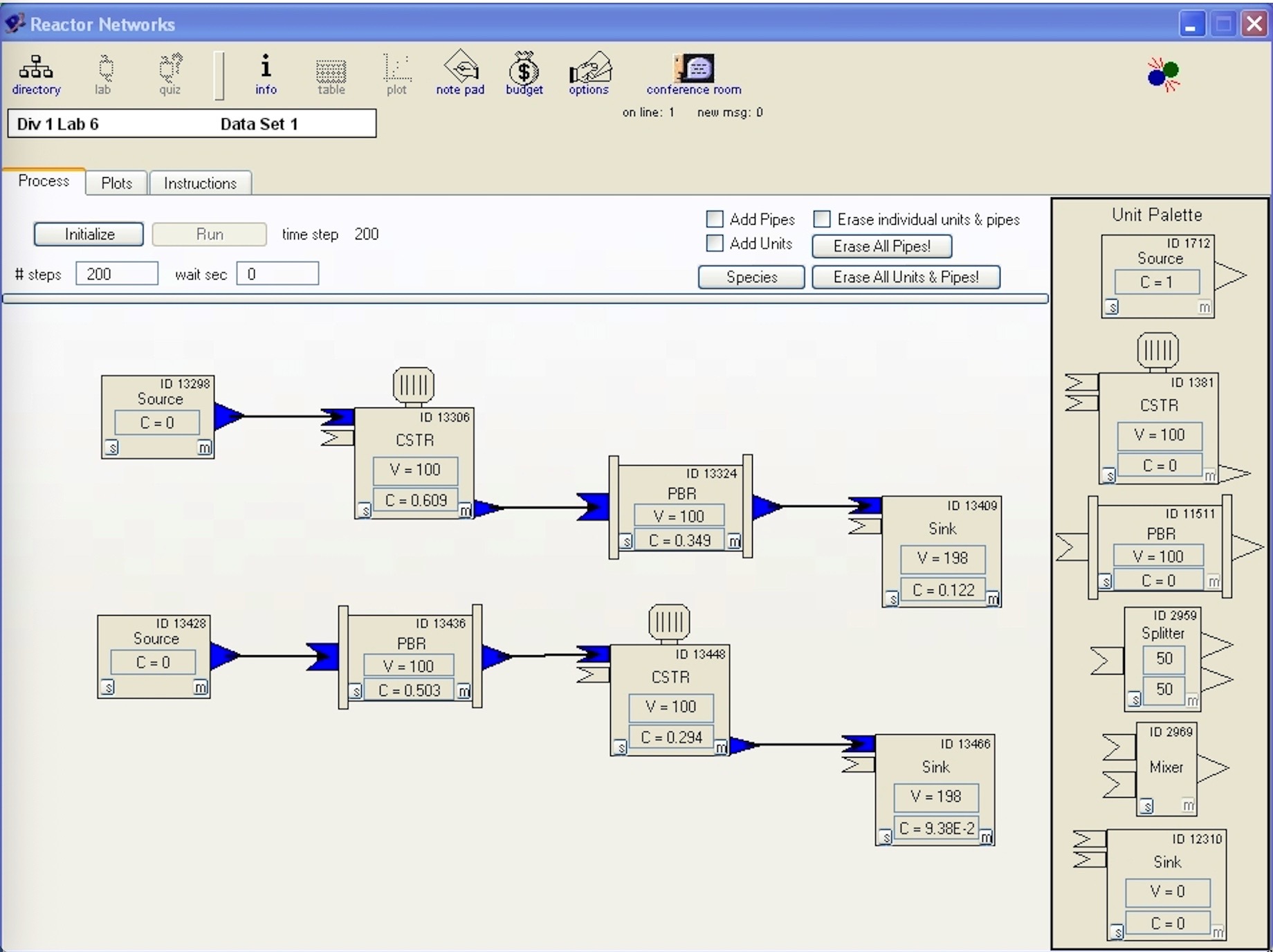
The desktop version of Reactor Lab had a lab that allowed you to design a reactor network with units that you selected and placed on a flowsheet. See our Annual report 2005 at the Desktop Lab tab above. That desktop version was built with the development tool LiveCode. If you have a LiveCode subscription, you can run a copy of the desktop Lab you download from our github site.

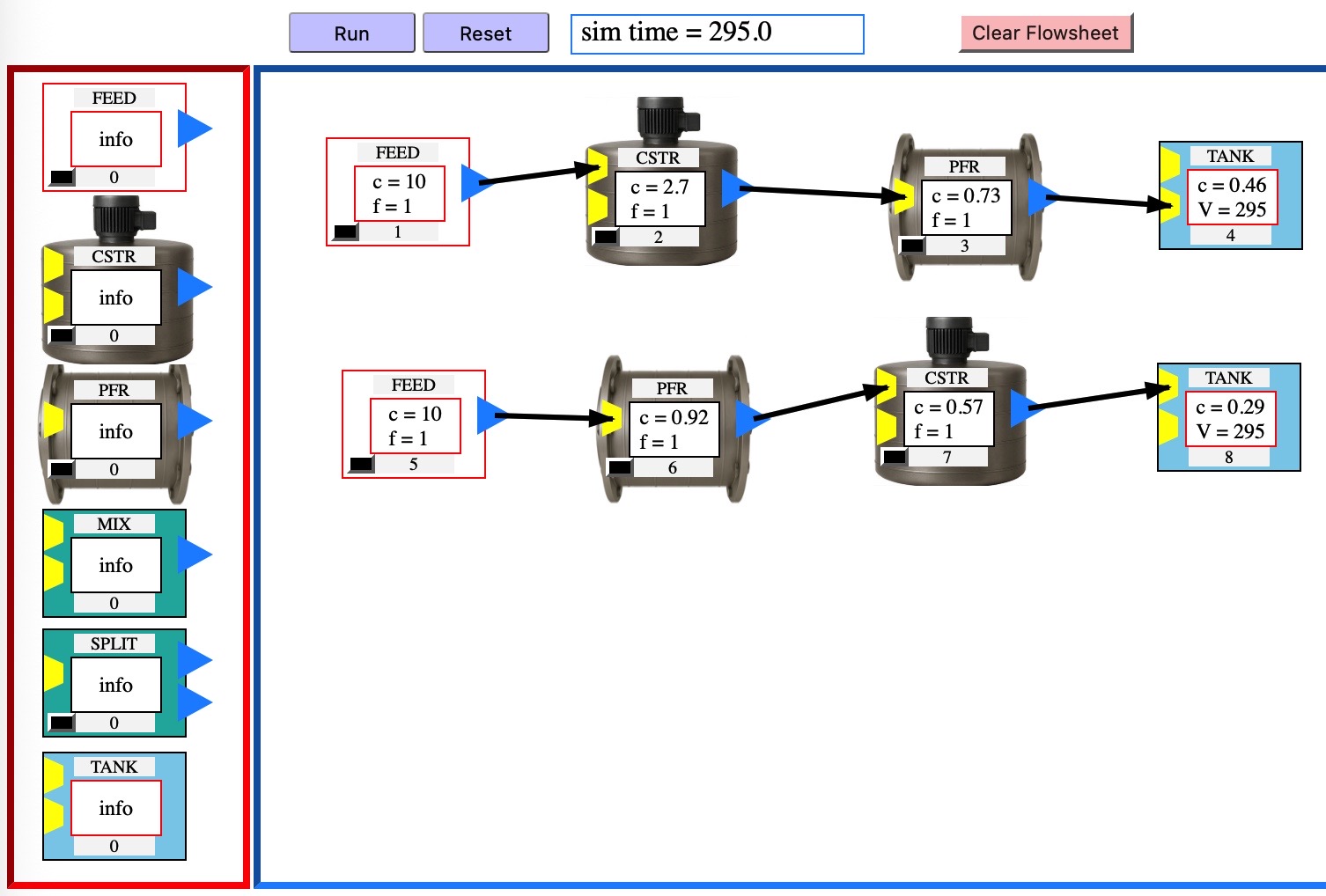
We are focusing on our Web Labs, now that we no longer support the desktop version. Today we posted our web version of the networks lab at the Web Labs tab, Reactors, Reactor Networks lab.

This web version was built with simple Javascript with no added libraries. It works by inserting and removing html code linked to Javascript objects as units are added and deleted from the flowsheet. This lab is less complex than apps which also build flowsheets, such as Aspen Plus and COCO, but this lab is easy to use to gain basic understanding of reactors and system dynamics.

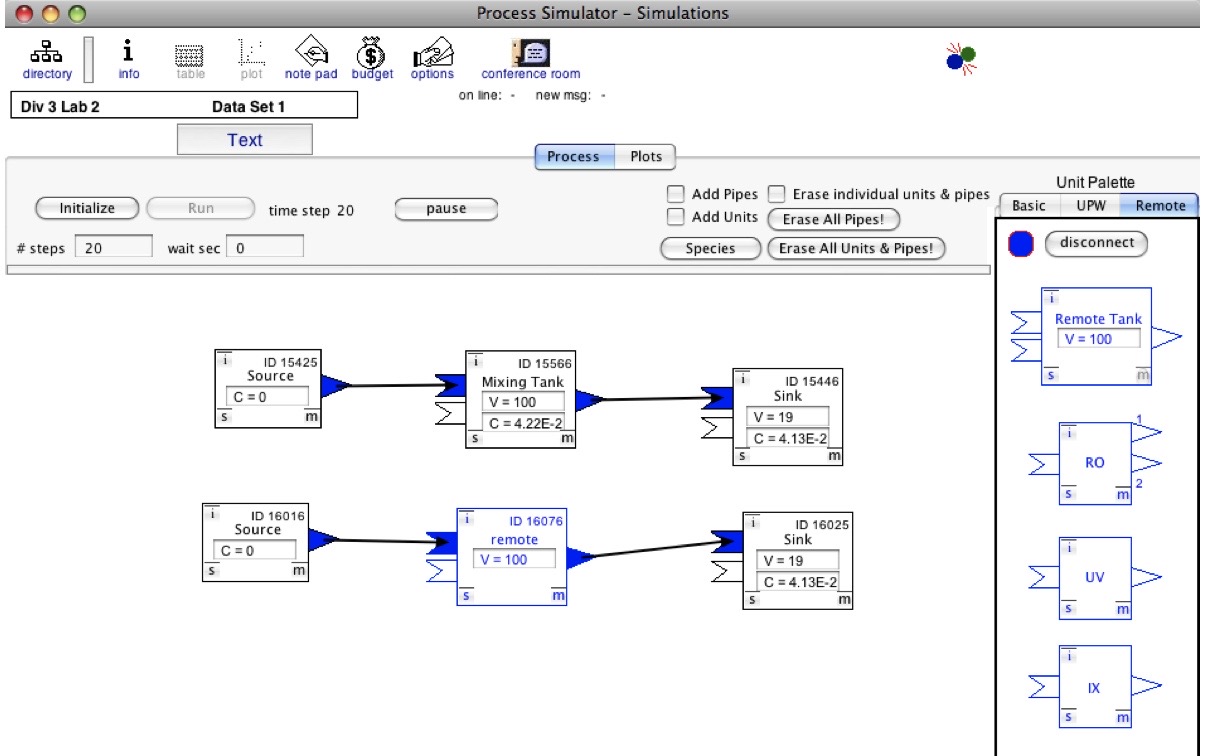
Below are three screenshots: one from the new Web Lab (top) and two from the desktop Lab. In the bottom screenshot, you can see a reactor network that utilizes both local desktop units and remote units, where the local and remote units exchange messages over the Internet during a dynamic simulation.

Please send us a message letting us know what you think at support@reactorlab.net

Reactor Networks in Reactor Lab's Web Labs
Reactor Networks in Reactor Lab’s Web Labs (2025)
Reactor Networks in the Desktop Reactor Lab, circa 2005
Reactor Networks in the Desktop Reactor Lab (2005)
Reactor Networks in desktop Reactor Lab
Reactor Networks in desktop Reactor Lab exchanging messages with remote unit on Internet during dynamic simulation (2009)

Evolution of Reactor Lab

Reactor Lab celebrated its 27th anniversary in March 2020. Starting in 2003, the desktop version was integrated with the Internet, with advanced features for that time.

These advanced features included automatic download and installation of updated files for off-line work, a conference (chat) room for discussions within Reactor Lab, and the ability to run process simulations involving local units and units at other locations in the same system. At that time, one could not assume constant connection to the Internet, as we do now. Once, from San Diego, I had a three-way discussion with a person in Michigan and a person in Turkey in the conference room.

I retired from the University of California at San Diego – UCSD – in 2014. Since then, my interest has shifted from the desktop version, which was constructed with LiveCode, to the HTML5-based Web Labs at this site.

This shift has been for a number of reasons, including omnipresent Internet connection in much of the world, almost everyone has access to the web and a web browser without having to download an application file, and the fast speed of Javascript built into web browsers.

That said, desktop apps have advantages over web pages such as saving data files to disk. In Web Labs, one has to go through an extra step to copy text from a popup window and save to a disk file. There are so many features that were built into the desktop Reactor Lab that duplicating them all in HTML5 might not happen.

I used to post standalone application files for Windows and Macintosh. With the evolution of operating systems and the evolution of LiveCode, I no longer wish to make the revisions necessary to build standalones.

However, one can continue to use the desktop Reactor Lab on Windows, Mac, and Linux. This can be done by opening Reactor Lab in LiveCode, version 8.0 or higher. LiveCode can be obtained at LiveCode.com. Download the free, open-source version of Reactor Lab from my github site at github.com/RichardHerz.

Instructions for how to do this are posted at the Download tab.

Web Lab development update

We now have six web labs posted. The newest is the dynamic heat exchanger simulation, and we recently updated the code structure of the reaction-diffusion lab and first temperature control lab to match the newest version.

In addition to the jquery and flot (plotting) libraries, each web lab is driven by six javascript files: (1) _main which runs the simulation loop, (2) _interface which handles the run-pause and reset buttons and gets and verifies inputs from the input fields, (3) _units which has simulation parameters and the process unit code, (4) _plot_info which contains definitions of the plots, (5) _plotter which makes the profile (static x,y) and strip chart (scrolling x,y) plots, and (6) _spacetime which makes the space-time, color-canvas plots.

Four of the six files are the same for all web labs. The two files specific to an individual web lab are the (3) _units and (4) _plot_info files.

We are amazed with the fast computational speed of javascript! Somewhere recently I read that the speed of javascript in browsers has increased by a factor of ten in the last year and a half. Years ago, computation in LiveCode (as MetaCard) was many times faster than javascript. Now, computation in javascript for our labs is much faster than native LiveCode script, although LiveCode 9 makes coupling to other languages for computation possible.

A feature unique to the heat exchanger lab is a check for attainment of steady state. When no significant changes to the system state are detected, the main simulation loop continues to run but unit computations and display updates cease until a change in input parameters is detected. When steady state is reached, the CPU load of the simulation decreases significantly. We don’t plan to implement this for the reaction-diffusion and temperature control labs because these usually operate under unsteady-state conditions.

The code is developing over time as we follow our usual development practice, which is repeat the following: (1) get something working, (2) notice repetition, (3) reduce repetition by writing functions and common library files.

Web Lab design progress

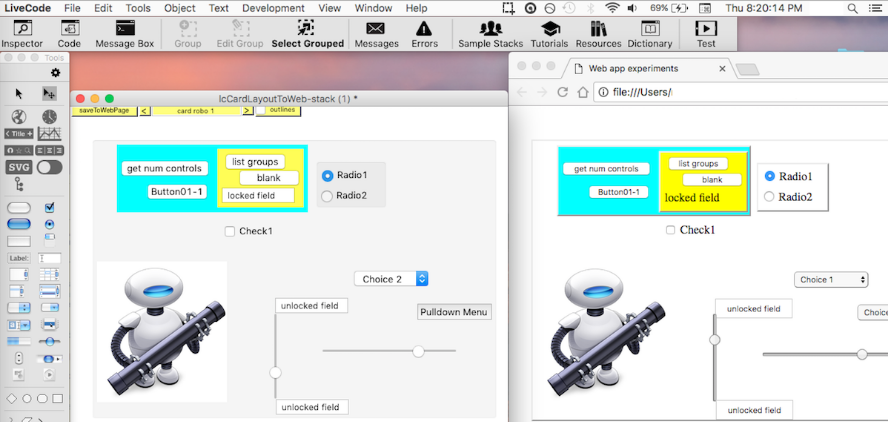
We have been working on our web page design project, lcCardLayoutToWeb, which is posted at GitHub. Here is a screenshot of a test page.

This project allows one to layout a web page in the LiveCode IDE, then export it to HTML and CSS files. The new work makes the process reversible. Exported pages can be edited to include links to Javascript files and references to Javascript functions in HTML events. Then the edited page can be imported into our LiveCode project for further editing of the layout: moving, adding and deleting elements. Then the revised page can be exported back to HTML and CSS files with the file and event references preserved.

This new work should allow us to make interactive web apps more easily.

See our newest Web Lab, “Dynamic diffusion and reaction in a porous solid catalyst” at the Web Labs tab above, Reactors. See the latest version of this web lab in our open-source projects at GitHub, https://github.com/RichardHerz/.

Space-time plot added to web lab

Space-time plots are a beautiful way to view dynamic reaction-diffusion systems. We added one to the Web Lab, “Dynamic diffusion and reaction in a porous solid catalyst.” Here is a static screen shot from the lab.

Adding this dynamic plot required learning how to program the HTML5 canvas element with Javascript – an exciting combination!

We prepared static plots of space-time data for our previous research work, e.g., at http://escholarship.org/uc/item/9bc7v3kv. We were inspired to make them dynamically by the fluid dynamics simulations of Oliver Hunt at https://nerget.com/fluidSim/ and Daniel Schroeder at http://physics.weber.edu/schroeder/fluids/. Those pages showed us that this was possible to do in a web page.